Simulator configuration tool for Barco Event Master Toolset
This tool will generate the simhw.xml file required to change the card configuration in the Video Processor Simulator.
I have developed the tool as a quick and easy alternative to manually editing the simhw.xml file.
The XML files generated have been tested with the simulator in v5.0 and should work as expected with older versions.
Certain features and cards are not available in older versions. Please check compatibility with the version you're using.
The site itself has been tested with the latest versions of Chrome, Firefox and Safari, and on Internet Explorer 11.
I unfortunately do not have the time to do any extensive testing. Please email me if you have any issues with the site or the XML files, or have any suggestions for changes or improvements: n@nlt.io
Usage
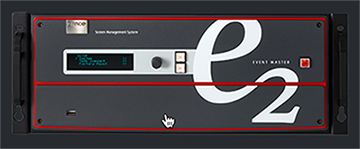
Click on the frame to change which processor you would like to simulate.
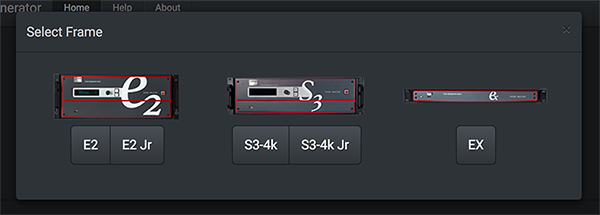
For convenience, there are defaults available for E2, E2 Jr, S3-4K, S3-4K Jr and EX.
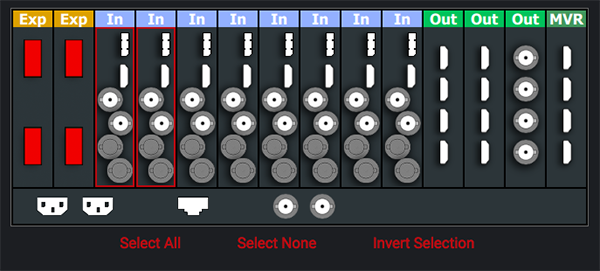
Click on the I/O cards to select/deselect them.
Expansion and VPU slots cannot be slected.
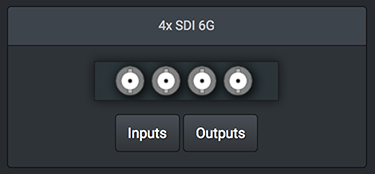
Change the selected I/O cards as required.

Select the number of expansion and VPU cards as required.
Select the desired function of the MVR slot. If "Output" is selected, the slot will become selectable and any output card can be chosen.
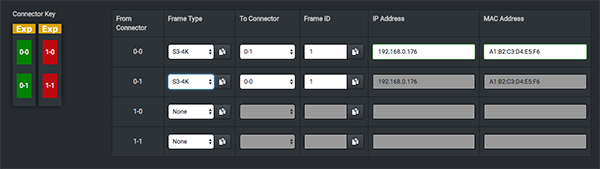
Links to other frames can be configured.
Choose the type of frame to link to from the "Frame Type" list. Other inputs for the link will be disabled until a frame is chosen.
The connector key indicates how the connectors are labled.
They are shown in the format [slot]-[connector]. For example, "0-1" is the first slot, bottom connector.
Choose the connector to link with from the "To Connector" list.
All options are shown for flexibility. Please ensure you're selecting the correct connector to create a valid link.
Any link which shares the same "Unit ID" will have it's IP and MAC addresses copied from the first link in the list with that ID.
"Copy to all" buttons are provided to copy the "Frame Type" or "Unit ID" from the selected link to all other links.
Download the XML File
The configuration is saved using cookies, so the next time you visit the site, your previous settings will be restored.
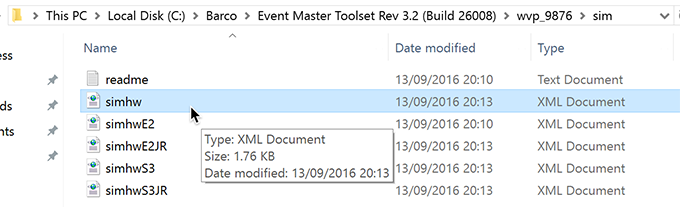
Copy the downloaded simhw.xml file to the correct folder on your system. The default location is:
C:\Barco\Event Master Toolset Rev (...)\wvp_9876\sim\
The file name must be simhw.xml. You might not see the extension depending on your windows settings.
Start (or restart) the Video Processor Simulator and the new configuration will be available in Event Master Toolset.